
Honista for PC: How to Run It on Windows
Honista doesn’t have a native Windows program that we can verify. It’s an Android app, so the only realistic way to use it on a computer is to run it inside an Android emulator. That route works for some people and fails for others, and it carries extra risks for your Instagram account. This guide explains your options, what to check first, how the setup works, and what goes wrong. This site is independent and isn’t affiliated with Instagram or Meta.
The Short Answer
| Option | Does it work? | Our view |
| A native Honista app for Windows | Not verified | Be careful with any site offering a Windows .exe |
| Android emulator | Sometimes | The only realistic method, with caveats |
| Windows Subsystem for Android | No longer supported | Microsoft ended support for it in 2025 |
| Instagram in a web browser | Yes | Official, but has no Honista features |
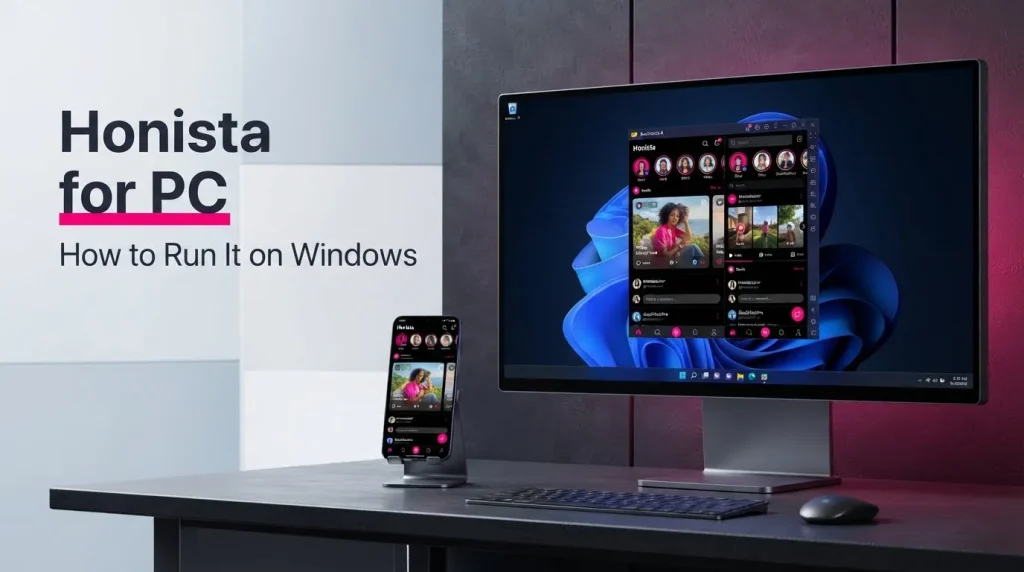
If you just want to use Instagram on a computer, the official website is the safest choice. If you want Honista’s extra features, an emulator is the only path. You can find the current Android file on our Honista APK download page.
The ARM Compatibility Catch
The current Honista release (v13.0) is built for the arm64-v8a processor type, which is what phones use. Most Windows computers use a different type, called x86 or x64. An emulator running on that kind of computer has to translate between the two, and not every emulator can.
This matters in practice:
- Some emulators can’t install an ARM-only app at all, and you’ll get an install error or a message that the app isn’t compatible.
- Others install it but run it slowly or crash, because of the translation.
- Some emulators support ARM translation in specific versions or settings [verify for the emulator you choose].
Before you spend time on setup, check whether your emulator supports ARM64 apps. If it doesn’t, Honista v13.0 may not run on it, and an older build with a different architecture might be needed, which brings its own risks. Our old versions page covers earlier builds if you decide to go that way.
What You Need
- A Windows 10 or 11 PC with a processor that supports virtualization, turned on in the BIOS or UEFI
- At least 8 GB of RAM is a sensible minimum, and more is better
- Several GB of free storage for the emulator and the app
- An emulator that supports ARM64 apps
- The Honista APK file, downloaded from a source you trust and checked against its published hash
- A secondary Instagram account to log in with
How to Run Honista in an Emulator
These steps are general. Menu names differ between emulators.
- Choose an emulator. Popular choices include BlueStacks, LDPlayer, and NoxPlayer. Download it only from its official website, because fake installers are common. Check that it supports ARM64 apps.
- Turn on virtualization in your BIOS or UEFI if the emulator asks for it.
- Install and open the emulator. Let it finish its first-time setup.
- Choose an Android version of 9.0 or higher, because Honista v13.0 needs Android 9.0 (Pie) or newer.
- Download the Honista APK to your computer and verify its SHA-256 hash against the one on our download page.
- Install the APK. Most emulators let you drag the file into the window, or use an “Install APK” button.
- Open Honista inside the emulator and log in with your secondary account.
- Test basic features before relying on it, such as scrolling, viewing a story, and opening settings.
If installation fails, see the fixes below.
Risks of Using an Emulator
Emulators add risks on top of the ones that come with any unofficial app:
- Higher chance of security checks. Logging in from an emulator looks different from logging in from a normal phone. Instagram may ask for extra verification, or restrict the account.
- Fake emulators and bundled software. Some installers include adware. Use the official site and watch for extra offers during installation.
- Your login passes through two layers. Your password is typed into an unofficial app inside another program you have to trust.
- Unstable features. Camera, notifications, and some downloads may not work the same way as on a phone.
- Account risk is the same or higher. Honista is still an unofficial client. We explain the account side in our guide to the risk of an Instagram ban, and the device side in our review on whether Honista is safe to use.
Don’t use your main or business account.
Problems and Fixes
| Problem | Likely cause | What to try |
| “App not compatible” or install fails | The emulator can’t run ARM64 apps | Try an emulator with ARM support, or check its settings |
| “App not installed” | A conflicting version or a damaged file | Remove old versions and re-download the file |
| The app crashes at launch | Translation overhead or too little memory | Give the emulator more RAM and CPU cores |
| The app is very slow | Weak hardware or virtualization is off | Enable virtualization and close other programs |
| Login keeps failing or loops | Instagram doesn’t trust the emulator | Wait, avoid repeated attempts, and see our login problems guide |
| Downloads won’t save | Storage access in the emulator | Check the emulator’s shared-folder settings |
| The camera doesn’t work | Webcam isn’t connected to the emulator | Enable camera access in the emulator settings |
Honista on Mac
The Windows steps don’t carry over directly. Macs use different processors, and APK files don’t run natively on macOS. Emulators exist for Mac, but support for ARM-only apps varies, and we haven’t tested them. Be careful with pages that offer a “Mac APK installer.” For more on Apple devices, see our page on Honista for iPhone, iPad, and Mac.
Safer Ways to Use Instagram on a Computer
If you mainly want to browse or post from a PC:
- Instagram’s website works in any browser and is official.
- A phone mirroring tool lets you control your own Android phone from your PC, so you run Honista on the phone, not in an emulator.
- The official Instagram mobile app on an emulator has the same security-check risk but avoids the unofficial-app risk.
Phone mirroring is usually the lowest-risk way to see Honista on a larger screen, because the app runs on a real device.
FAQ
This site, honistaapp.pro, is an independent resource and isn’t affiliated with, endorsed by, or connected to Instagram or Meta. Emulator features and requirements change often, so check each tool’s current instructions.